
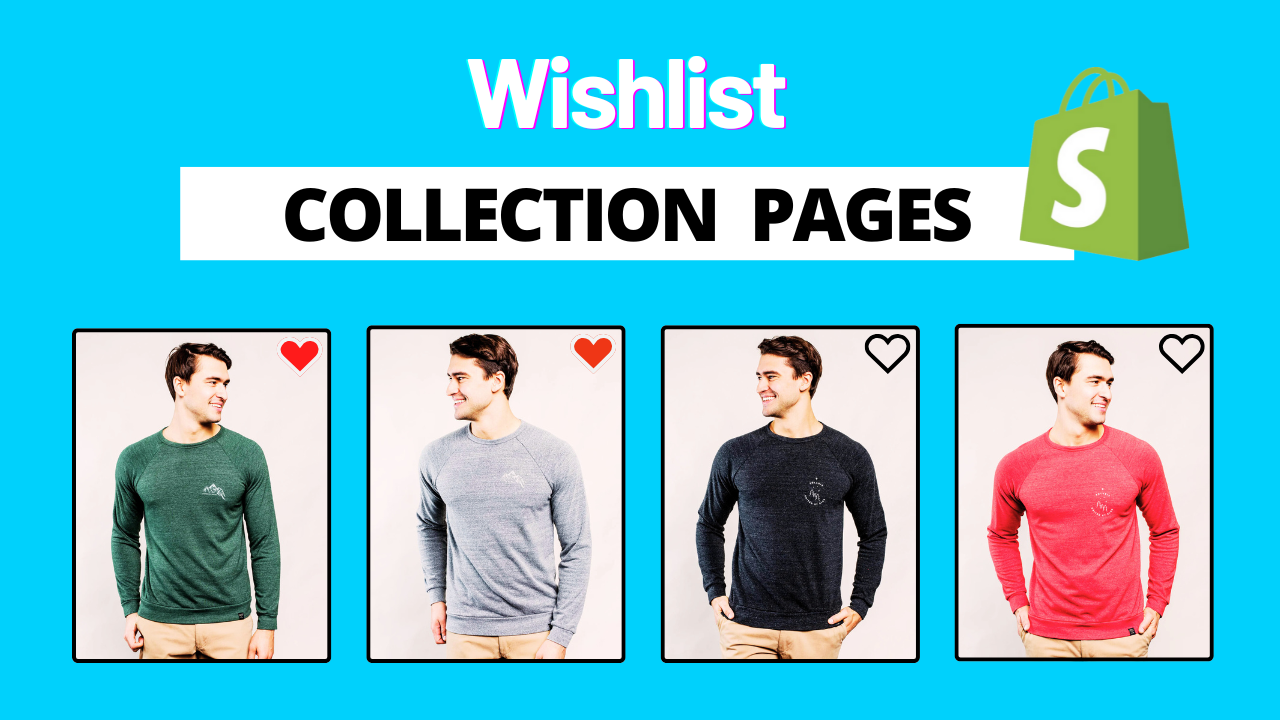
How to Create Wishlist in Shopify Product Cards – No App
Boost your Shopify store with premium code snippets—easy to install, instantly upgrade functionality, and enhance customer experience. Trusted by merchants worldwide. Download now!
59 Downloads
Couldn't load pickup availability
Immediate download.
Immediate download.
Only copy & paste code
No monthly fees.
No monthly fees.
Safe checkout
Safe checkout
Share

Description
Adding a wishlist feature to your Shopify store can significantly improve user experience and increase repeat visits. Many store owners believe they must install paid apps to enable wishlists—but that’s not always necessary.
In this guide, you’ll learn how to add a wishlist feature on Shopify collection page product cards without using any app, in a simple, beginner-friendly way.
What Is a Wishlist in Shopify?
A wishlist allows customers to save products they like and come back later to purchase them. It works especially well on collection pages, where shoppers browse multiple products at once.
Common benefits of a wishlist include:
- Better customer engagement
- Higher return visits
- Improved conversion rates
- More time spent on your store
Why Add Wishlist to Collection Page Product Cards?
Most Shopify stores only show wishlists on product pages. Adding a wishlist button directly on collection page product cards offers major advantages:
- Customers can save products without opening product pages
- Faster browsing experience
- Higher chances of repeat purchases
- Cleaner UI compared to heavy third-party apps
Why Avoid Wishlist Apps?
Many Shopify wishlist apps:
- Add extra monthly costs
- Slow down your store speed
- Load unnecessary scripts
- Have limited design customization
By avoiding apps, you maintain full control, better performance, and zero recurring fees.
How Wishlist Works Without an App (Concept Explained)
Even without an app, a wishlist can work smoothly by:
- Allowing users to tap a heart or save icon
- Saving selected products in the browser
- Showing saved items when users revisit your store
This method works automatically for:
- Returning visitors
- Mobile and desktop users
- All Shopify OS 2.0 themes
No account login is required.
Where Should the Wishlist Button Appear?
For best results, the wishlist button should be placed:
- On product cards inside collection pages
- Near product images or titles
- As a heart or bookmark icon
This placement ensures maximum visibility and usability.
Which Shopify Themes Support This Method?
This approach works well with:
- Dawn theme
- Refresh
- Sense
- Craft
- Most Shopify Online Store 2.0 themes
Even custom themes can support this feature with minimal setup.
Benefits for Store Owners
Adding a wishlist without apps helps you:
- Reduce app dependency
- Improve website loading speed
- Keep a clean and professional UI
- Offer premium features for free
It’s especially useful for fashion, electronics, cosmetics, and grocery stores where customers compare products before buying.
SEO & Conversion Benefits
A wishlist feature indirectly improves SEO by:
- Increasing session duration
- Reducing bounce rate
- Encouraging repeat visits
Search engines value user engagement, and wishlists help improve these metrics naturally.